Set up Bitbucket Pipelines and AWS CodeDeploy with Terraform

What you’ll need to follow this guide: Link to heading
- Terraform >12.13 & understanding of basic Terraform usage
- AWS API Access, preferably with admin-level permissions
- Bitbucket Repository with Pipelines enabled
- An EC2 Instance you wish to push your code repository contents to
Concept: Link to heading
Using Bitbucket Pipelines and Bitbucket Deploy, we will set up automatic pushes to an EC2 Instance with AWS CodeDeploy. Target EC2 Instance does not need to be publicaly accessible in any way for this approach.
Benefits: Link to heading
- A non-SSH approach - Unlike webhooks to Jenkins or other scripts that Rsync, this method will allow you to stay behind firewalls and/or private subnets within your AWS VPC
- Lean on IAM for tighter authorization of AWS resources
- Pipelines offer a world of options in continuous integration and delivery practices and tools
- No internal EC2 instances running to support deployment
Costs: Link to heading
- AWS CodeDeploy - ~$0.02 per deployment, per instance (priced from us-west-2)
- S3 standard storage costs apply
Implementation Guide: Link to heading
Included are some hints in Terraform code that you can adapt to your needs. Please modify it accordingly to your needs and environemnt. Link to heading
1. Create IAM User with Direct Policy Attachment for Bitbucket. Link to heading
The basic goal of this step is to screate an IAM user and a direct policy for Bitbucket, as well as an S3 bucket, which will be where you upload your repository artifacts. An IAM user controls access to specific AWS resources that will be used in this guide.
For obvious reasons, you will want to call your bucket something else and change the bucket name.
After your terraform apply, you should now have an IAM user created for Bitbucket to work with. Link to heading
2. Create a separate IAM role & policy for your EC2 Instance that will be able to use CodeDeploy. Link to heading
We will be using an IAM role to attach to an EC2 instance; the IAM policy will drive what actions and AWS resources the role will be able to perform once it is attached to an instance.
It will need to read the same S3 bucket and have access to codedeploy, along with the proper trust relationship for the service and will be attached to your EC2 instance:
After your terraform apply, your IAM role will have the permissions it needs to work with CodeDeploy, S3, and is ready to be attached to an EC2 Instance. Link to heading
3. Create CodeDeploy app, deployment group, and deployment config. Link to heading
To get started with CodeDeploy, you will need three things:
- deployment app name (we’ll call ‘app’ in this guide)
- deployment group
- deployment config for your application
This step’s goal is to configure CodeDeploy to push to your EC2 Instance which we’ll call in this guide ’example_instance’:
After you terraform apply the above, you will now have all 3 required resources for a complete CodeDeploy setup on AWS. Link to heading
4. Create CodeDeploy appspec.yml and Lifecycle Hook scripts. Link to heading
To complete CodeDeploy setup, you will need to create an appspec.yml and some scripts for lifecycle hooks to check into your repository root directory. The appspec.yml file will control the CodeDeploy lifecycle hooks (or steps) that you will want to use to deploy your code. There are many lifecycle hooks but this guide will cover the 3 basic lifecycle hooks:
BeforeInstall - the script you want to run before copying code to the desired location on the server examples: backing up a configuration file to a different location, stopping the application
AfterInstall - the script you want to run after code is copied to the desired location on the server examples: running a database migration, installing packages or modules your updated code will depend on
ApplicationStart - the script, or command to start or restart your application examples: init.d, systemctl, or custom startup scripts
appspec.yml:
And for the scripts mentioned in appspec.yml:
- scripts/before_install.sh:
- scripts/after_install.sh:
- scripts/application_start.sh:
This will give you the basic setup for controlling what CodeDeploy does at each step of the deployment. Link to heading
I highly encourate you to expand on these scripts and make them as elaborate as your needs require. It’s just bash, after all!
5. Attach IAM Instance role and install the CodeDeploy Agent on your Instance. Link to heading
Now, back to the IAM role we created in step 2 – Ensure the EC2 Instance has the ‘codedeploy-ec2’ role attached and then install the CodeDeploy Agent. The agent runs locally on the EC2 Instance and will be responsible for honoring the steps you specified in appspec.yml.
I won’t be re-typing those instructions but they can be found at this link: https://docs.aws.amazon.com/codedeploy/latest/userguide/codedeploy-agent-operations-install.html
You can attach the role via AWS console by right clicking on the Instance > Instance Settings > Attach/Replace IAM Role
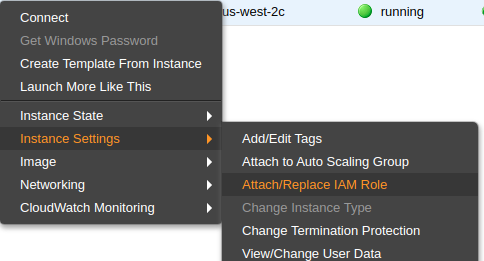 Or you can ensure that your Terraform code includes the following line:
iam_instance_profile = "${aws_iam_instance_profile.codedeploy_ec2.name}"
within the aws_instance resource of the host you are working on
Ideally, the IAM role ‘codedeploy-ec2’ is attached prior to starting the codedeploy-agent for the first time, else it will complain. If you happen to install the agent prior to attaching the role to the instance, just reboot the instance. Link to heading
6. Enable Bitbucket Pipelines for your code repository. Link to heading
Next, we will enable Bitbucket Pipelines for your repo by going to your repository Settings > Pipelines > Enable
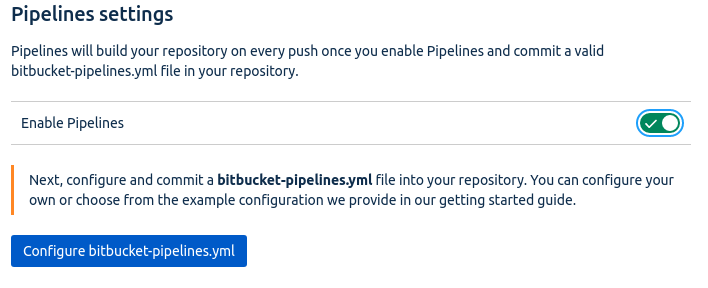
This will enable Bitbucket pipelines to operate on your repository. Link to heading
7. Create a bitbucket-pipelines.yml in your code repository. Link to heading
Create a bitbucket-pipelines.yml file for your repo. The pipelines file will control what Bitbucket is supposed to do with your code when you push to a given branch. You can also perform different actions by branch name within steps. This example will do most of the heavy-lifting on commits to the master branch:
- bitbucket-pipelines.yml:
This will tell Bitbucket what to do with your code once you commit it to a certain branch. Link to heading
The default steps will execute for any branches you don’t specify but this layout should give you a good idea of what you can do with teh bitbucket-pipelines.yml file.
Also note the usage of pipe: atlassian/aws-code-deploy:0.3.2, which is a shortcut reference to an Atlassian-managed Docker container that is already set up to work with CodeDeploy using the Environment Variables we will cover in the next step.
8. Configure Bitbucket Pipelines Environment Variables in your code repository. Link to heading
You will notice some environment variables in the previous step – Ensure the variables in bitbucket-pipelines.yml are configured properly.
In your Bitbucket repository, go to Settings > Repository Variables be sure to set values for:
- AWS_DEFAULT_REGION
- AWS_ACCESS_KEY_ID (of the IAM user in step1)
- AWS_SECRET_ACCESS_KEY (of the IAM user in step1)
- APPLICATION_NAME
- S3_BUCKET
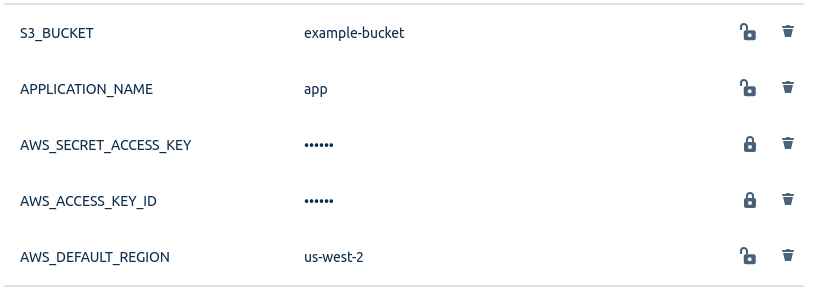
Now your bitbucket-pipelines.yml should be ready for action Link to heading
9. Commit changes to Bitbucket and Push to Master branch Link to heading
Commit your changes & push it all up to the master branch of repository and watch the magic happen – pipelineous automaticus!
Closing Link to heading
If everything goes according to plan, and you’ve modified Terraform to fit your setup, you should be happily on your adventure with automated continuous deployment using Bitbucket Pipelines with AWS CodeDeploy.
Considerations Link to heading
- AWS S3 Lifecycle Policies can help keep your storage costs in check
- CodeDeploy configs allow for myriad deployment methods, choose the one that is right for your stack with regards to uptime
- Rollback triggers aren’t a must but they’re a great idea
- Encourage development staff to work on maturing bitbucket-pipelines for their codebase - it only makes quality better for everyone
- Of course you can do this all in AWS Console and skip Terraform entirely